
Quick Start Guide
Get your first screen up and running in minutes
Welcome to Roomcaster
Roomcaster makes it easy to get content on your screens across multiple rooms and locations. Whether you're setting up displays for a church, school, or business, this guide will walk you through the basics.
By the end of this guide, you'll have your first screen connected and displaying content.
What you'll need
Before you begin, make sure you have:
- Roomcaster account (sign up at roomcaster.tv if you haven't already)
- Compatible streaming device — Roku, Google TV, Android TV, or Apple TV
- TV or display with an available HDMI input
- Internet connection for both your computer and your streaming device
Any Roku, Google TV, Android TV, or Apple TV device will work. We have options available on our devices page. Make sure the device is connected to the internet and signed in to its respective store.
Three steps to your first screen
Step 1: Install the Roomcaster app on your device
- Roku: Add it from the Roku Channel Store, or search for "Roomcaster" on the device
- Google TV / Android TV: Install it from Google Play, or search for "Roomcaster" on the device
- Apple TV: Install it from the App Store, or search for "Roomcaster" in the App Store on the device
Open the app once it's installed — it will display a 4-character activation code on screen.
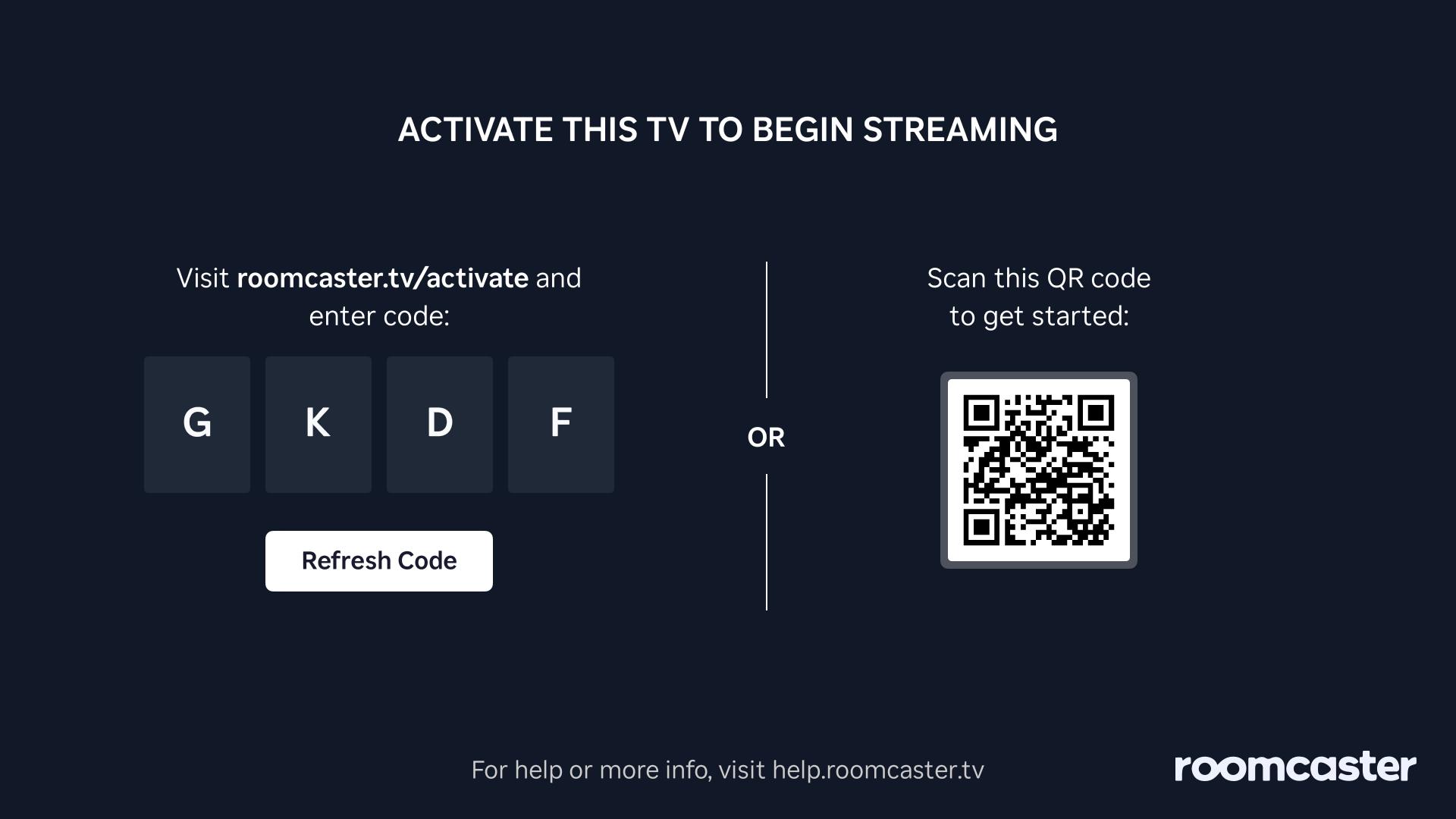
Step 2: Activate your screen
- Scan the QR Code or use your phone/computer's web browser to navigate to the Activate page (roomcaster.tv/activate)
- Enter the 4-character code shown on your TV
- The screen is created and linked to your account automatically
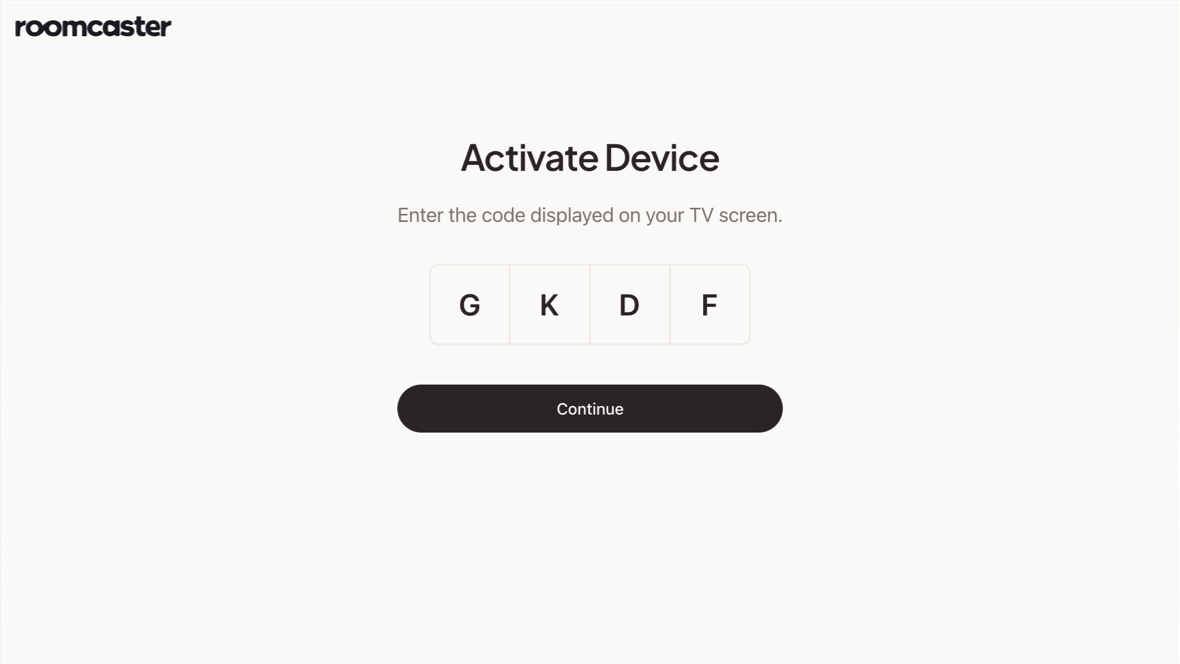
Activation codes expire after 15 minutes. If your code expires, restart the Roomcaster app on your device to get a new one.
Step 3: Assign content to your screen
- Upload media — Head to the Media library and upload images or videos
- Create a program — Programs are playlists of media that play in sequence
- Set up a channel — Channels hold your programs and define what plays on each screen
- Schedule content — Add your Program to your Channel by scheduling it.
- Done! — As soon as your channel is created and active, it will appear automatically in the Roomcaster app the next time you open it on your TV.
What to do after activation
That's it — your screen will start displaying your content. You can edit the screen name and other details from the Screens page at any time.
Next steps
Now that your first screen is running, explore these guides to get more out of Roomcaster:
- Uploading Your First Media File — Add videos and images to your media library
- Managing Content — Organize your media, programs, and channels
- Troubleshooting — Solutions to common issues
Still stuck?
Our support team is here to help.