
Folders, Trash, and Tags: A Media Library Built for Every Ministry

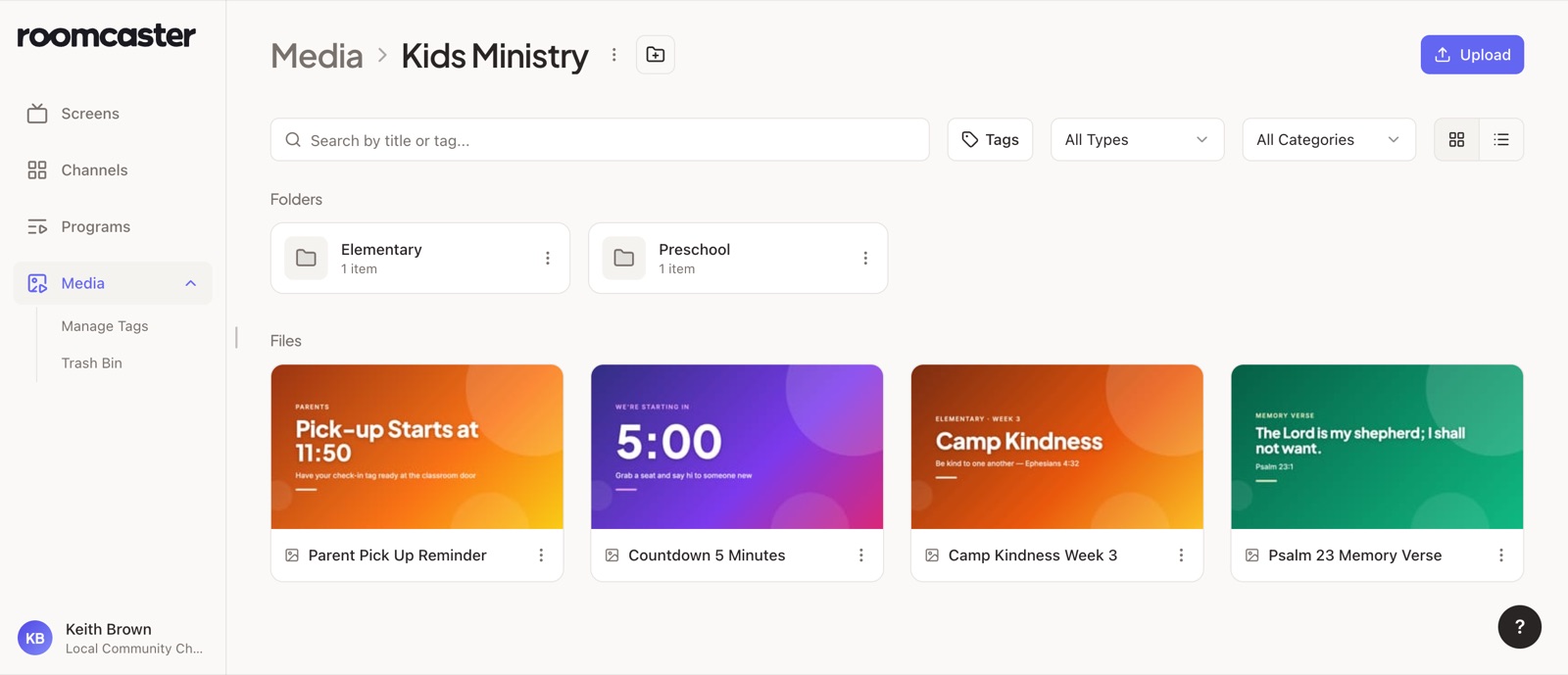
Every church's media library starts tidy. Then the kids team uploads this week's lesson, worship adds three countdowns, the students pastor drops in a retreat slide, and by spring nobody can find anything. One list of everything, sorted by upload date, stops working somewhere around item 200.
We heard that from a lot of you, most often from churches where several ministries share one account. So we rebuilt the Media Library from the ground up. It now has folders, multi-select, a Trash you can undo, and a tag list your whole team shares. It's live for every church today.
Folders for every ministry
Create a folder for each ministry, each season, or each series, and folders inside those. Kids Ministry can hold Preschool and Elementary; Worship can hold this month's countdowns. Folders nest up to 20 levels deep, which is far more than any church we know of needs. The path at the top always shows where you are, and every part of it is a link.
Getting things into the right place is quick:
- Upload straight into a folder. Open the folder and click Upload, and everything you add lands there.
- Drag and drop. Drag items onto a folder, or onto any part of the path at the top to move them up a level.
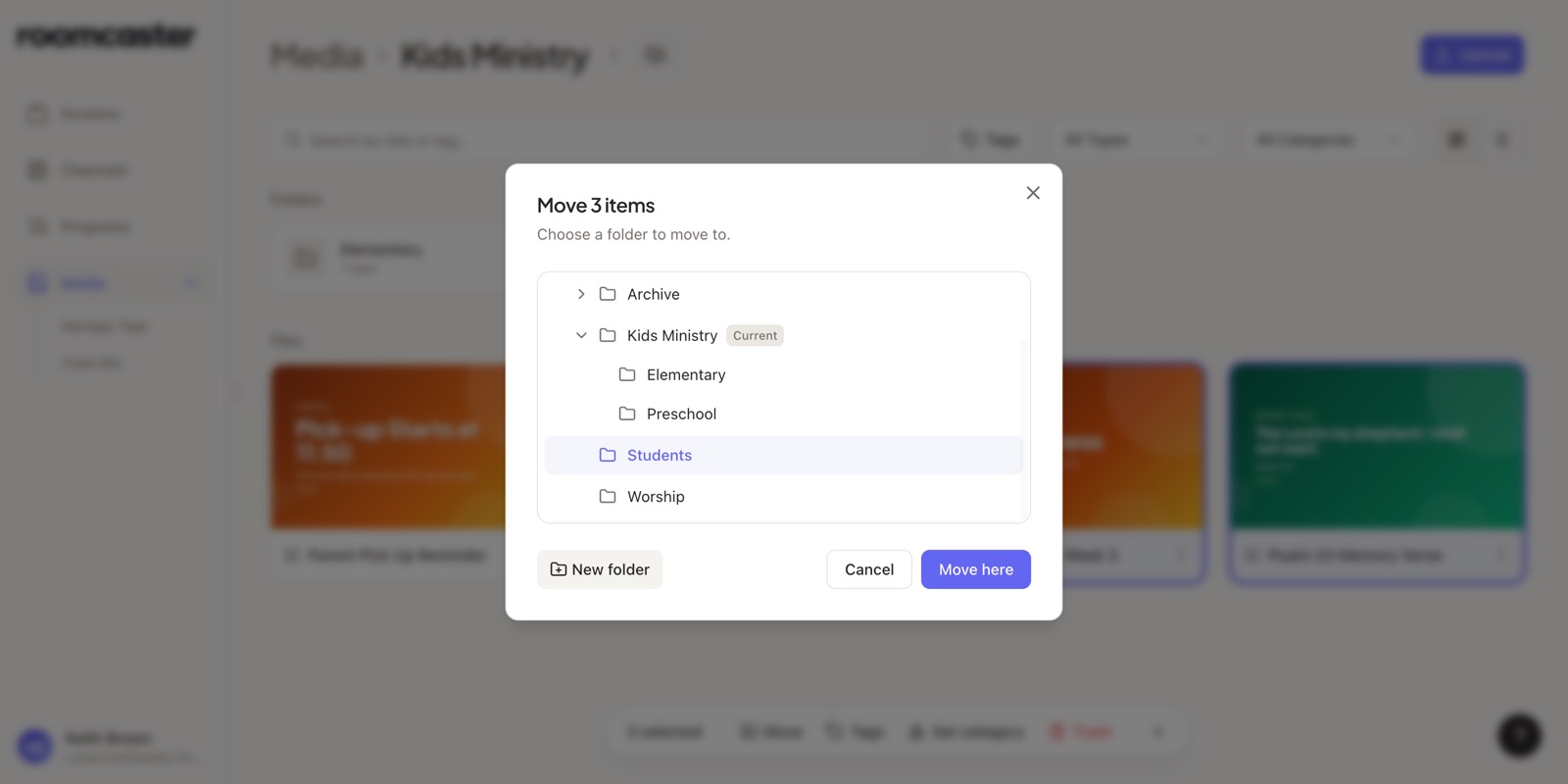
- Or use Move. It opens your folder tree, so you can send items anywhere, even several levels away.
When you're inside a folder, the ⋮ next to its name lets you rename it, move it, or move it to Trash without going back up a level.
Folders are for organizing, not for permissions. Everyone on your team sees every folder, so the kids team can still borrow a worship countdown when they need one.
Select many, act once
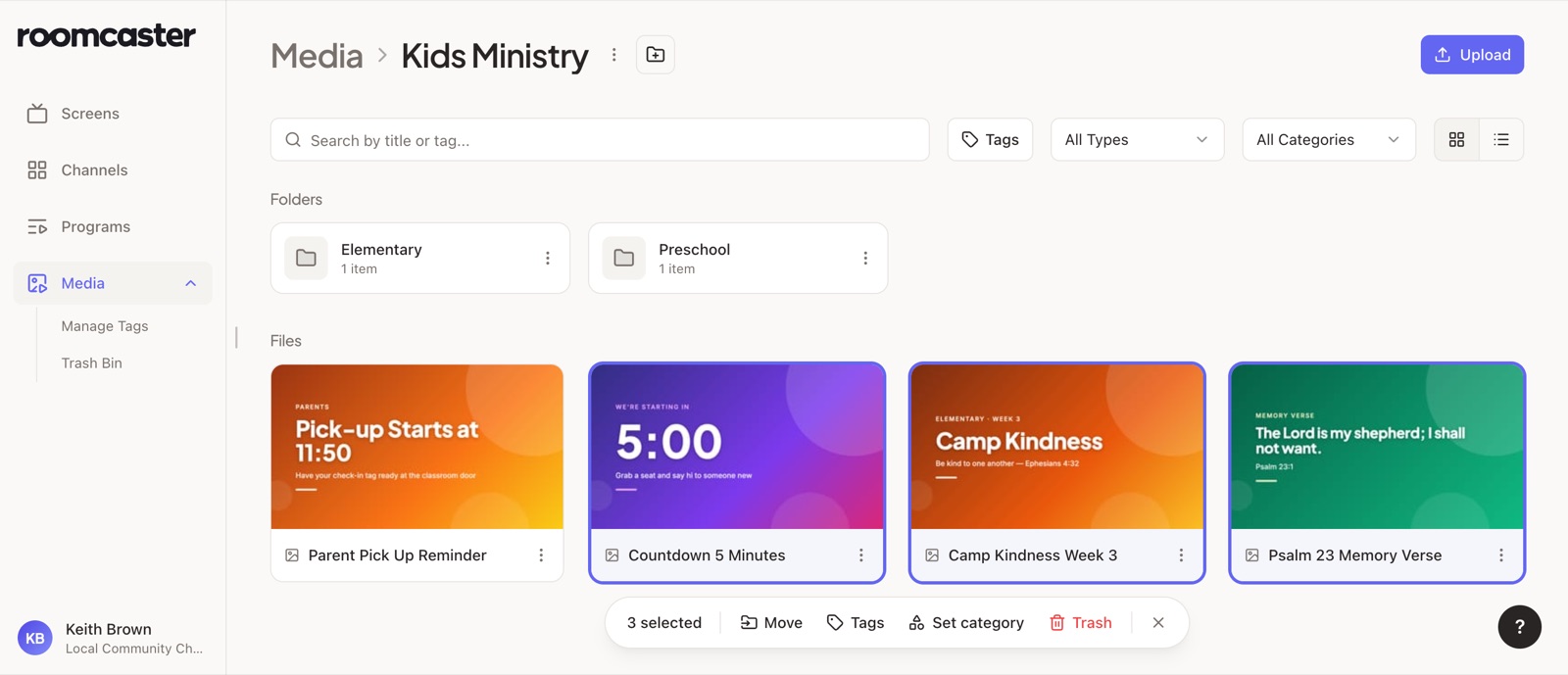
Cleaning up used to mean one item at a time. Now you can select as many as you like:
- Click an item to select it, and Ctrl-click (⌘-click on a Mac) to add more. Double-click opens it.
- Shift-click to select everything between two items.
- Drag a box around a group of items.
A bar appears at the bottom with what you can do to all of them at once: Move, Tags, Set category, and Trash. Right-clicking anything in the selection gives you the same options.
A Trash you can undo
Deleting used to be permanent. Now it isn't.
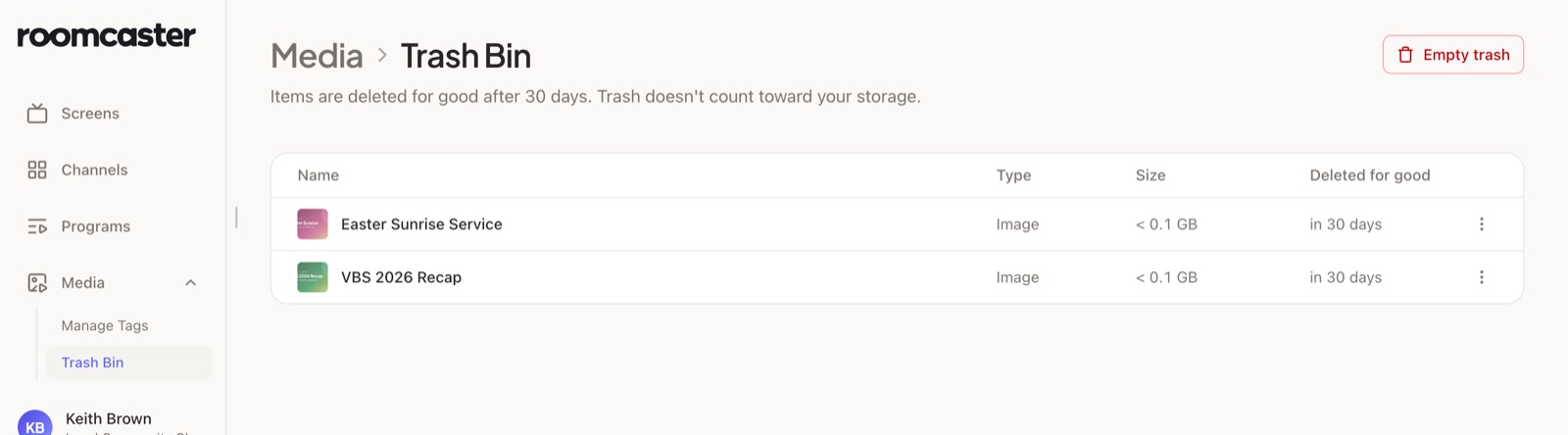
When you delete something, it goes to the Trash Bin, and a message at the bottom of the screen offers Undo. If you miss that, the item stays in the Trash Bin for 30 days, where you can restore it with one click.
A few details we think matter:
- Trash doesn't count toward your storage. Clearing out old videos frees up space right away.
- Trashed items come off your screens immediately. If a slide is in a program, it stops playing, but it keeps its place in the program. Restore it and it comes back in the same spot.
- Empty folders are just deleted. Making a new folder is faster than digging one out of the Trash.
Tags your whole team shares
Tags used to be free text, so one person typed "Easter", another typed "easter-2026", and search found half of them. Now each church has one shared list of tags. You pick from the list as you tag, and you can create a new tag right there when you need one.
Tags shine when you're looking for something across folders. Pick a tag in the Tags filter and you'll see every item with it, wherever it lives. Search works the same way: by default it looks through your whole library, and one click narrows it to the folder you're in.
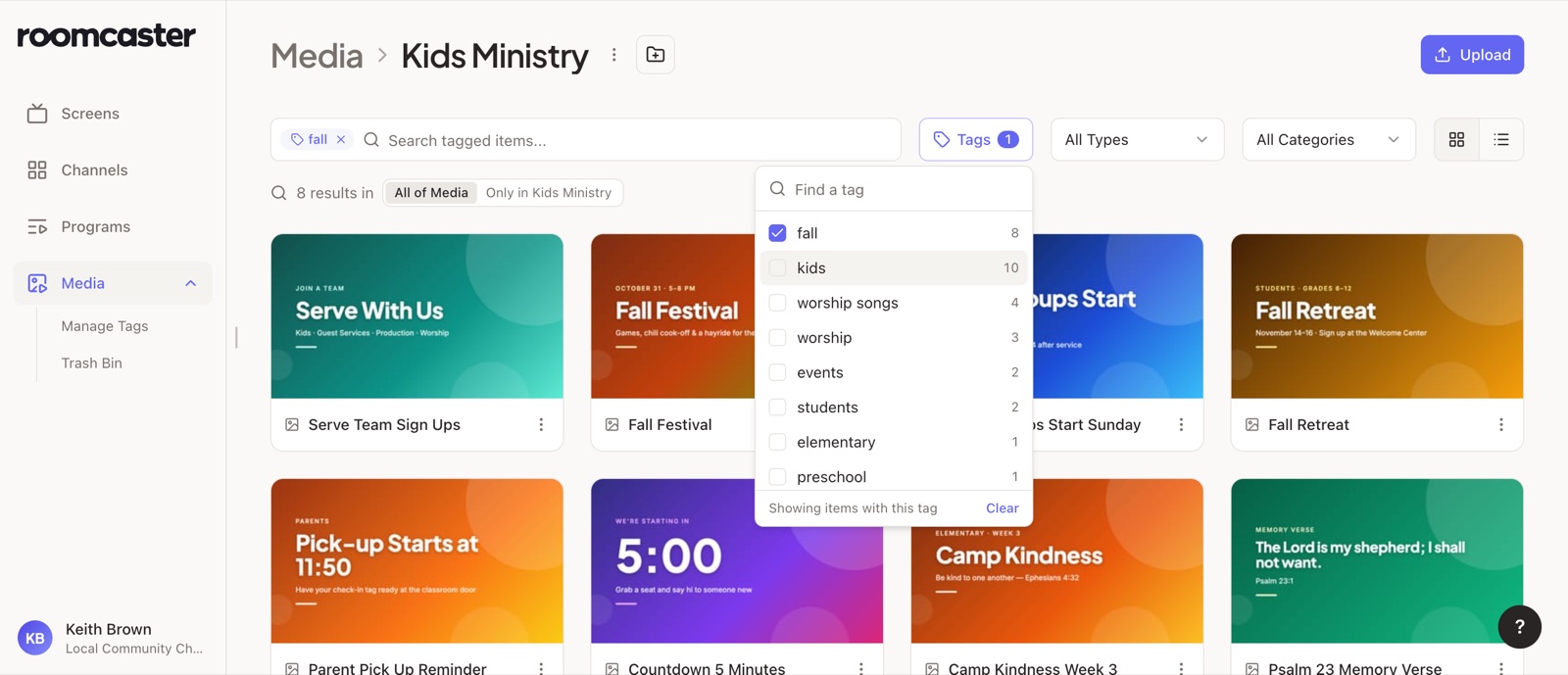
To tidy the list itself, open Media → Manage Tags. You can rename a tag, merge two that mean the same thing, or delete one you no longer use. Any tags you'd already added have been moved over for you.
Frequently asked questions
Will moving media into folders change what's playing on my screens?
No. Folders only change where an item lives in your library. Your channels and programs keep playing exactly what they did before, wherever their items are.
How long do deleted items stay in the Trash Bin?
Thirty days. After that, they're deleted for good, along with their files. Until then, you can restore anything from the Trash Bin, and restoring an item puts it back in its original folder.
Do items in the Trash Bin count toward my storage limit?
No. Moving something to Trash frees up its space right away. Restoring it uses that space again, so if your plan is full, you'll be asked to free up room or upgrade first.
Can I limit a folder to one ministry's team?
Not today. Every member of your team can see and use every folder. Folders are meant to keep things organized, not locked away.
What happened to the tags I'd already added?
They were moved into your church's new tag list automatically. If you had near-duplicates, like "easter" and "easter sunday", you can merge them on the Manage Tags page.
Go organize something
If your Media Library has been one long list, now is a good time to give each ministry a folder. Start with whichever ministry uploads the most, and the rest of the library gets easier to find right away.
Roomcaster is free to start on one screen, and no credit card is required.
Ready to try it on your trickiest rooms?